Collar › Guides › Coming from another system
Guide · coming from
Coming from Leapfrog
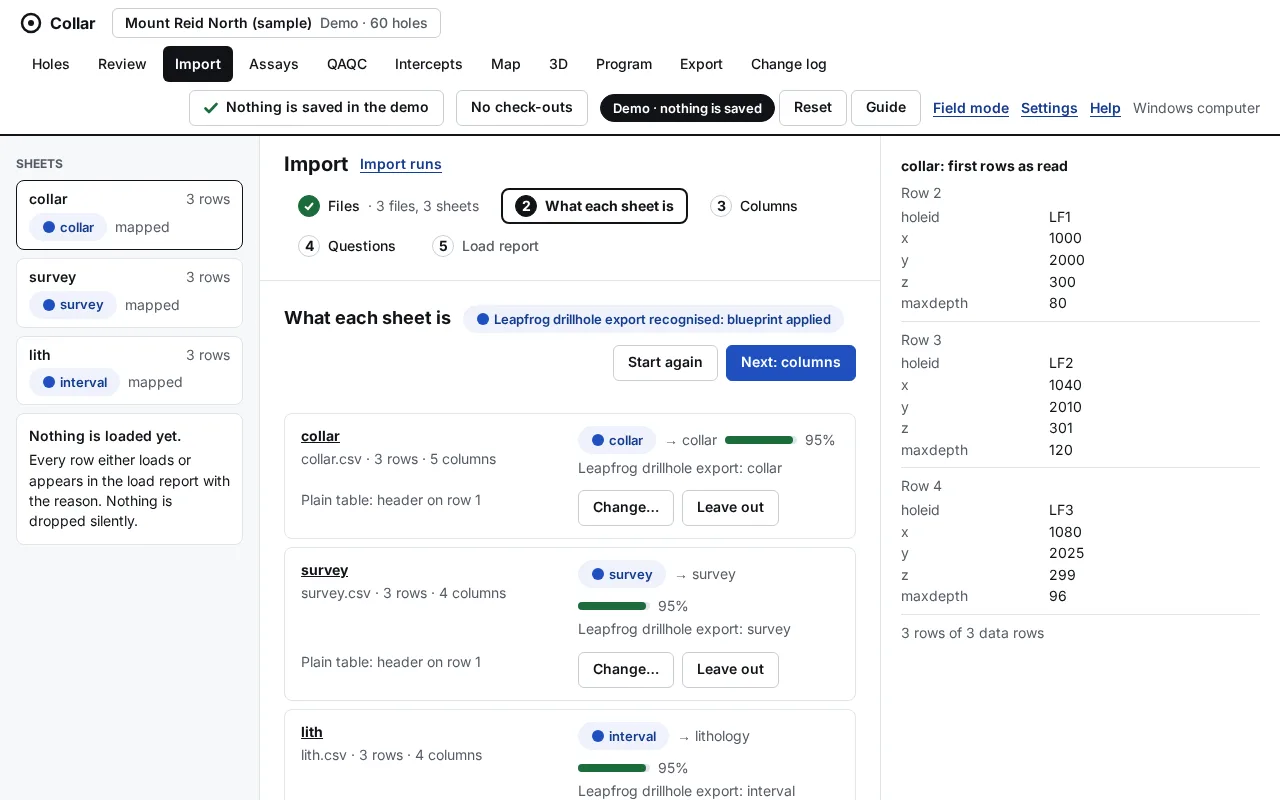
Export the drillhole data from your Leapfrog project and drop the files on Import. When the collar file has Leapfrog's standard columns (holeid, x, y, z, maxdepth), Collar recognises the export and asks only what the files do not say, such as the coordinate system.
01
Get the data out
- In Leapfrog Geo, right-click the drillhole data in the project tree and choose Export. Export as CSV: the collar table, the survey table and each interval table you want to bring.
- Keep the standard column names. If the collar file's columns were renamed, Collar maps them as it would any spreadsheet's, for you to check.
- Drop the files on Collar's Import screen together.
- Answer what Collar asks, such as the coordinate system of x and y.
02
What Collar does with it
- Collar recognises a Leapfrog drillhole export by its collar file (holeid, x, y, z, maxdepth) and reads the survey and interval files beside it.
- x, y and z become the collar's coordinates and maxdepth its end-of-hole depth.
- Collar asks which coordinate system x and y are in, because the collar file does not say.
On Basic and Studio. Education does not recognise vendor exports.
101 named checks, each explained in plain words, run on your drillhole and assay data the moment it is imported. Blockers stop an export until they are fixed or a named person overrides them with a reason.
03
The result in Collar
04