Collar › Guides › Coming from another system
Guide · coming from
Coming from spreadsheets
Drop the workbook or the CSV files you keep now, as they are: no template to fill in first.
01
Get the data out
- Leave the workbook as it is: notes above the header, unit rows, totals and codes can stay where they are.
- Drop the workbook, or the CSV files, on Collar's Import screen.
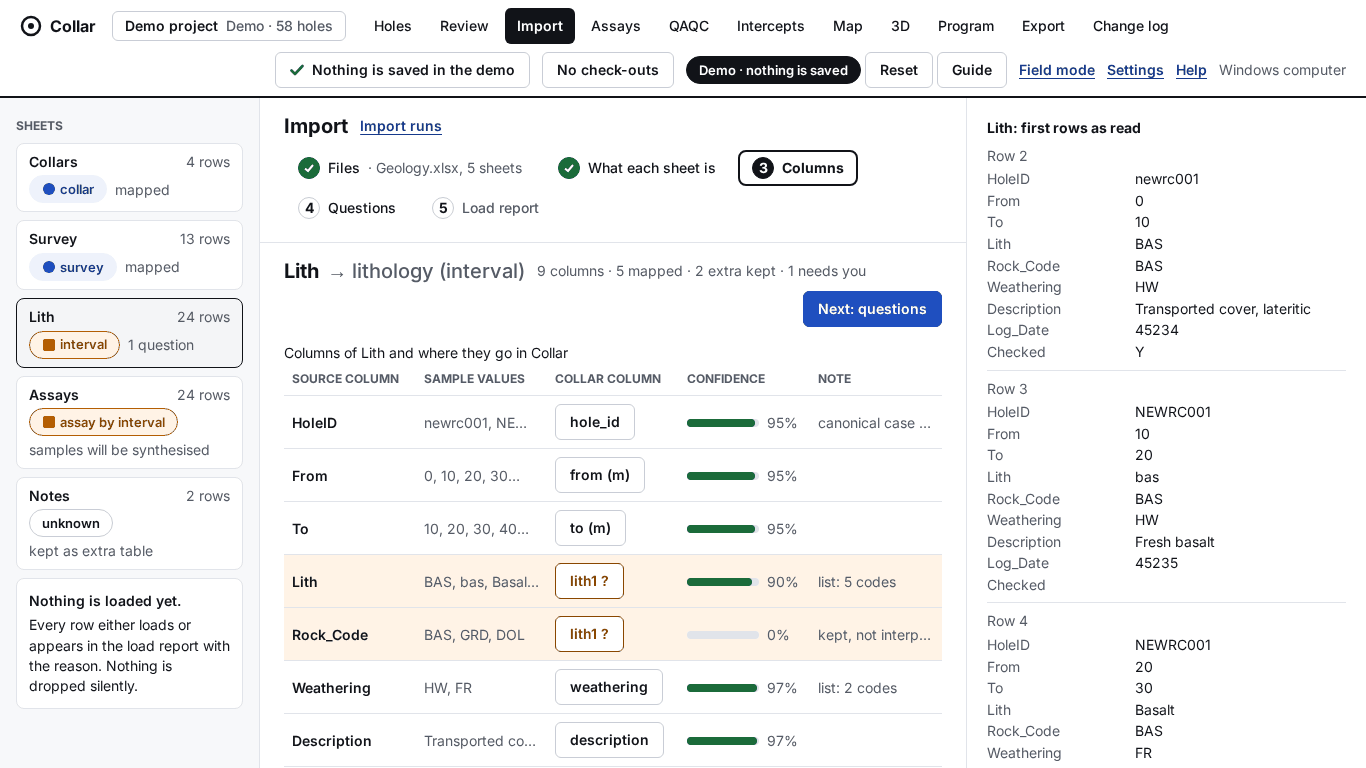
- Check the mapping Collar proposes and answer what it asks.
02
What Collar does with it
- Drop in the workbook or the CSV files as they are: Collar works out what each sheet is from its columns, shows the mapping, and asks only what it cannot tell (dip sign, CRS, what a negative assay means).
- Notes above the header, unit and method rows under it, Excel serial and text dates, totals and trailer rows, sentinels such as −9999 and text in numeric columns are read for what they are.
- Every row is loaded or listed in the load report with its reason. Nothing is dropped silently.
- Columns Collar has no place for are kept as extra columns.
101 named checks, each explained in plain words, run on your drillhole and assay data the moment it is imported. Blockers stop an export until they are fixed or a named person overrides them with a reason.
03
The result in Collar
04